
Wi-Fi security is the set of configuration choices that decide who can join your business network, what they can reach once they are on it, and how much of that is separated from the systems you depend on. For a small business it comes down to three things: separate networks for separate purposes, modern encryption, and no equipment still running the settings it shipped with.
Your office Wi-Fi is one of the most overlooked pieces of your security. It is the network your computers, point-of-sale system, cameras, and every visitor's phone all share — and if it is open or loosely configured, it is a quiet back door into everything. The fixes are straightforward and mostly free.
Why does office Wi-Fi deserve a second look?
Because it is the one system nearly every device in the building shares, and most of it was configured once and never revisited. The laptop at the front desk, the payment terminal, the cameras, the printer and every guest phone are all reaching the same access point. If that access point hands all of them the same unrestricted network, anything that goes wrong on one device has a clear path to the rest.
Wi-Fi is also easy to get wrong quietly. Nothing breaks, nobody complains, and the network keeps working exactly as expected — which is how a router installed by a previous tenant can sit for years with its factory password still in place. That is the useful part of the picture, though. Nothing here needs a specialist or new hardware. Most of what follows costs an afternoon and lives entirely inside settings you already control.
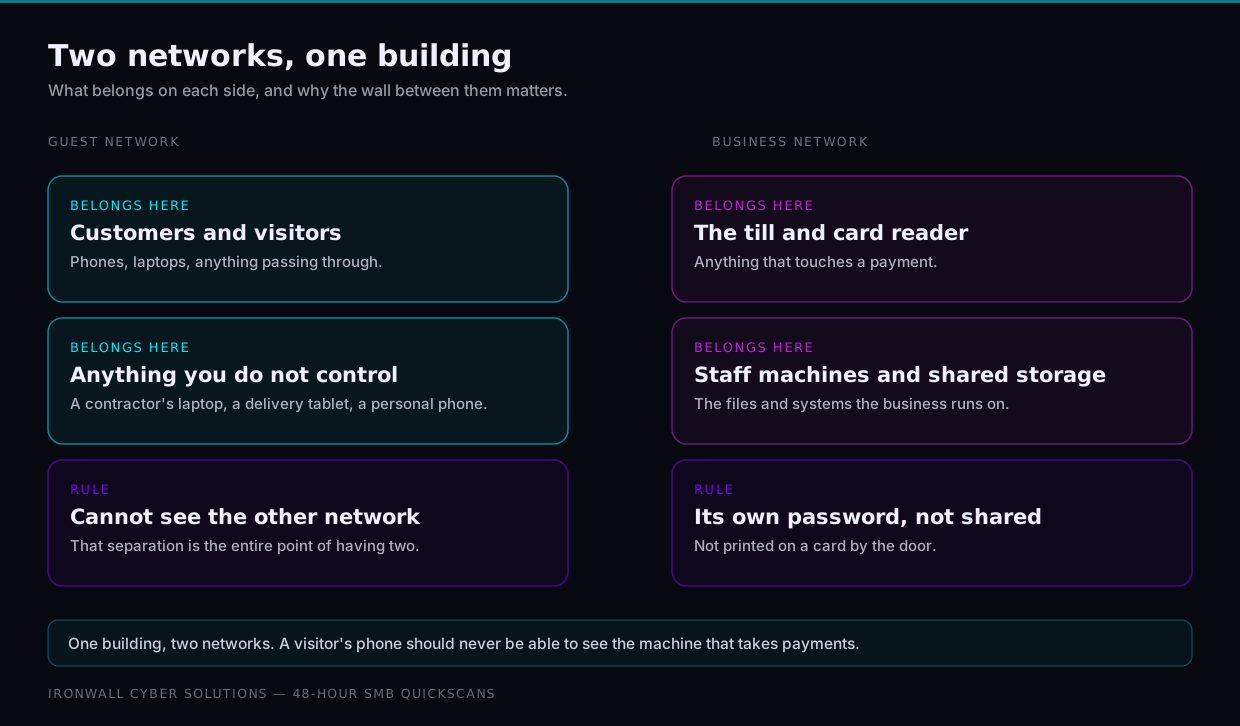
What does separating your networks actually mean?
It means running more than one network on the same equipment, so joining one does not grant access to the others. Most business access points already support it.
- A private network for your business devices. Computers, servers, the point-of-sale system and printers belong here — nothing else does.
- A guest network for customers and visitors. Isolate it, so guest devices reach the internet without touching your business systems.
Smart devices — cameras, thermostats, televisions — belong in a third segment. They are rarely designed with security in mind, and you do not want one sharing a network with the computer that handles your accounts.
A guest who joins your Wi-Fi should reach the internet — and nothing else you own.
Which router settings are worth changing first?
Five of them carry most of the weight, and all five sit in the same administration page. Work down the list in order — encryption first, because it is what protects everything else you configure afterwards.
| Setting | Why it matters | What good looks like |
|---|---|---|
| Encryption | An open network puts everything travelling over the air within reach | WPA3 where supported, WPA2 as the floor, never open |
| Admin password | Factory defaults are published openly and are the first thing tried | A unique passphrase kept in your password manager |
| Wi-Fi password | A password shared widely enough eventually travels beyond the building | Strong and unique, with the guest password rotated periodically |
| Firmware | Updates close flaws in the device that are already publicly documented | Automatic updates enabled, and a manual check twice a year |
| WPS and remote admin | Convenience features quietly widen the ways into the equipment | Switched off unless you genuinely use them every week |
Does the physical side of the network matter too?
It does, and it is the part most owners forget. Encryption stops nobody who can simply walk up to the equipment. An unattended network port in a waiting area, a switch under a reception desk, or a router sitting in an unlocked storage cupboard all offer the same shortcut: skip the wireless entirely and connect directly to the network instead.
The remedy is unglamorous and quick. Keep routers, switches and access points in a locked cupboard or a room staff have to badge into. Disable network ports that nothing is plugged into, particularly the ones in public-facing areas. Most business equipment lets you turn ports off individually from the same admin page you were already working in. If a device has a reset button reachable from a public space, that alone is a reason to move it somewhere staff-only, because a reset returns it to factory settings and factory settings are the weakest configuration it has.
How do you keep it right after setup day?
By treating the network as something with an owner rather than something that was installed once. The initial configuration is the bulk of the work, but a handful of small habits keep it from drifting back.
- Review the list of connected devices a few times a year. Most routers show everything currently joined, and an unfamiliar name is worth ten minutes of asking around.
- Change the guest password on a schedule you can remember. Quarterly is plenty, and it clears out everyone who passed through and no longer needs access.
- Change the business Wi-Fi password when someone leaves. Shared credentials do not walk out of the door with the person who knew them.
- Confirm firmware is current when you review devices. Automatic updates occasionally stall, and a quick look catches it.
- Write down what each network is for. One short note stops a well-meaning colleague putting a new camera on the business network.
The bottom line
Separate guests and smart devices from your core systems, use modern encryption, replace every default password, and keep firmware current. A properly configured network quietly closes one of the easiest doors available — and takes an afternoon to set up.